 OnlyCars
The OnlyCars guide
OnlyCars Workflow
From your vehicle photos to a finished video. Step by step.
Set up your profile, arrange your images and choose the right look. Find the complete process, practical tips and the final checks before publishing here.
Start with your profileProfile & identity
Set it up once. Use it for every vehicle.
After signing in, open your profile. Add your company name, website and the contact details buyers should use. Save your changes. The company name is optional.
Upload your logo, preferably as a transparent PNG. If dealer branding is available in your account, configure colors, the logo and your default call to action there. Check whether the design is enabled.
Connect your channels under social media accounts. During authorization, select the correct account or Facebook Page. You need the corresponding access permissions.
- Company logo
- PNG
- Contact
- Phone · Email · Website
- Dealer branding
- Color & logo


Save profile
Create a vehicle project
Accurate details. A clear next step.
Choose New video. Make and model are required. Add year, mileage, price and currency as needed. An internal vehicle ID helps you organize projects. Leaving the price blank omits it from the video.
Describe a few genuine highlights instead of a long equipment list. Video descriptions are shortened to fit, while the full description stays in the project. Always review the finished video.
Choose a suitable call to action, such as Schedule a test drive. Custom CTA text replaces the dealer default. For the link, entering onlycars.de is enough; https:// is added automatically. Without a custom destination, the share page uses your profile details.
Vehicle details
- Make
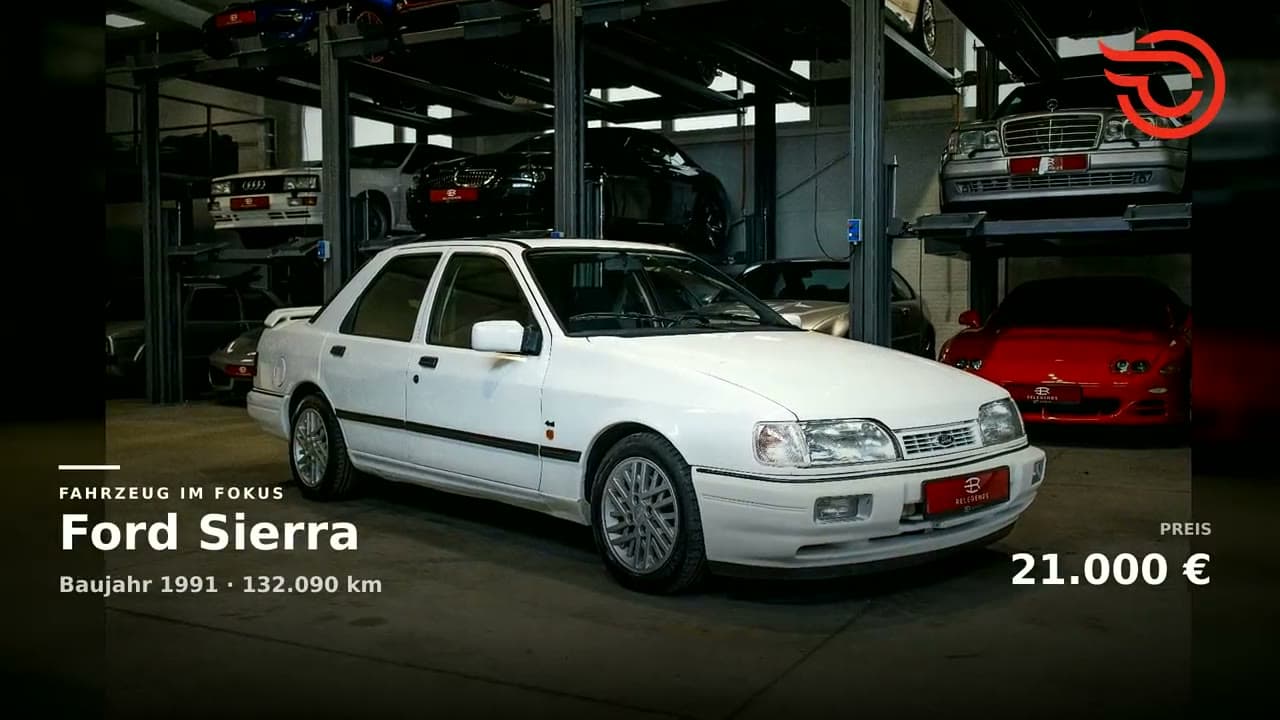
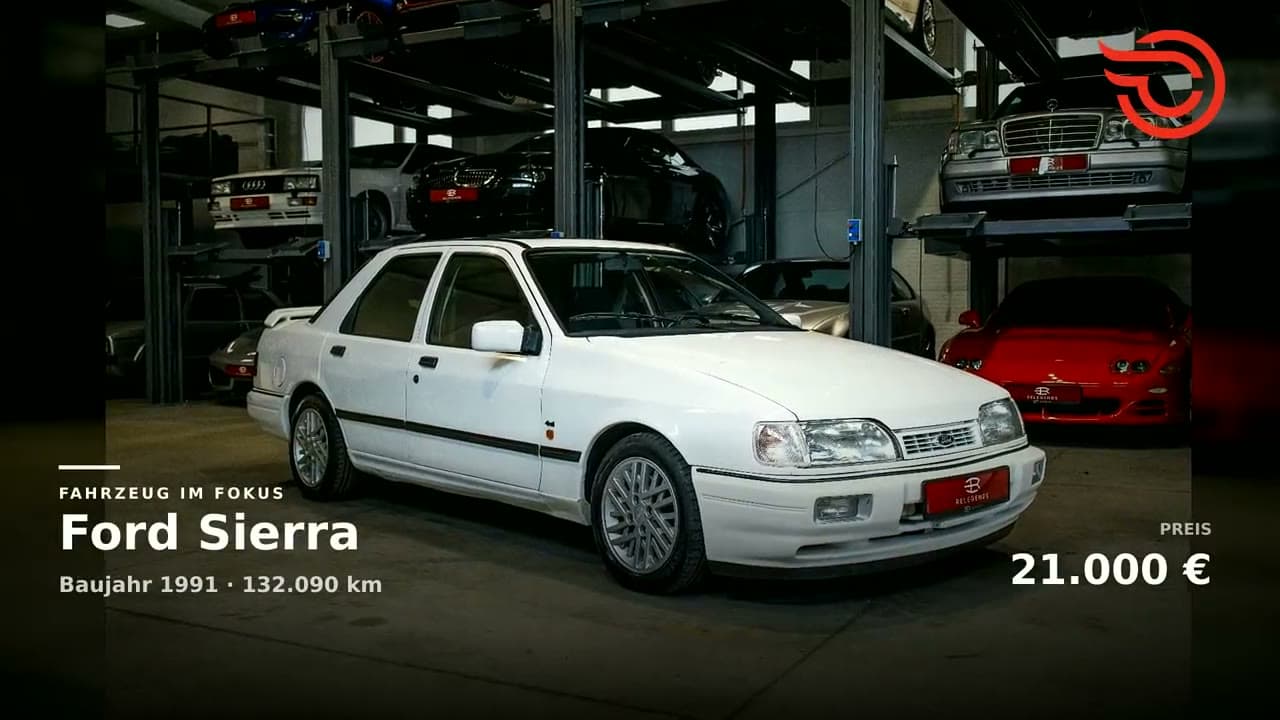
- Ford
- Model
- Sierra
- Year
- 1991
- Mileage
- 132.000 km
- Price
- 21.000
- Currency
- EUR
A few specific highlights. Not a long equipment list.
Select & arrange images
Your strongest image first. Then tell a story.
Select 4 to 30 JPG, PNG or WEBP images. When creating a project, originals up to 50 MB per image are supported; the app prepares large images for upload. Remove unsuitable files with the trash icon. Wait for preparation and upload to finish.
Open Manage images. Use Set as cover to choose the opening image. Drag an image by its handle to the desired position, for example image 10 directly into position 2. Alternatively, use the arrows. Wait for confirmation that the order has been saved.
Start with a strong exterior view, then show front, side and rear, followed by the cabin and details. Keep the complete vehicle visible in the frame. Where supported by your template, adjust the image focus and check the preview.
Manage images
 1 Cover
 2
2 3
3 4
4Image 10Position 2
Template, format & motion
Match the look to the vehicle and channel.
Under Look & music, choose Clean Video, Classic, Luxury or Dynamic. Clean Video omits text overlays. Classic is the straightforward base; Luxury and Dynamic offer alternative looks. Compare the preview and review the rendered result.
9:16 is portrait for Reels, TikTok and Shorts. 1:1 is square for feeds. 16:9 suits a website or a traditional YouTube video. Decide early where you want to publish.
Choose motion: Smooth, Cinematic, Energetic or Showroom. Especially in portrait, check that the front, rear, wheels and cabin details stay in frame. Save your settings before creating the video.
Look & music
Template
- Clean Video
- Classic
- Luxury
- Dynamic
Format
Smooth · Cinematic · Energetic · Showroom
Choose music deliberately
Support the vehicle, not overpower it.
In Look & music, choose a style: Luxury, Sporty, Urban or Classic Cars. Listen to available tracks using the preview and select a favorite. Automatic selection is also available.
Choose No audio to create a video without a music track. This is independent of the template: Clean Video controls overlays, while No audio controls sound. Save your selection.
A sound that suits the car.
- Luxury
- Sporty
- Urban
- Classic Cars
- No audio
Listen: Open Road Pulse
Create, review, refine
The preview is the starting point. The finished video is the final check.
Check your images and saved settings. Select Create free video or Create video, depending on your account. The first successfully created video is free; further versions require available video credits.
The job runs in the background. Queued means it is waiting for capacity; Processing means the video is being created. Do not start the same job repeatedly. If it fails, check the message in the project.
Play the finished video all the way through, including on a phone. Check image order, framing, text, price, logo and sound. Editing a project does not change an existing video: create a new version to include your changes.
Finished example video
Download, share & publish
From finished video to a visible listing.
Download the finished MP4 or use the share link to the vehicle page. Share that link on your website, in messages or via WhatsApp. A share link is not a social media post.
To publish directly, select a platform beside the finished video. YouTube, Instagram, Facebook or TikTok may be available depending on your connected accounts and authorization. Check the destination, caption and available visibility settings.
Confirm only if you have the rights to use the images and music. Meta upload and publication are separate steps: wait for the video to finish processing, then confirm publication. After success is reported, open the post on the platform and check the result.
- Check account & caption
- Upload & processing
- Confirm publication
- Open the post on the platform
MP4 · Share-Link
One final look
Ready to publish?
- Correct vehicle, details and currency
- Strong cover and varied image sequence
- Suitable format, no important details cropped out
- Readable text, logo and call to action
- Music reviewed and usage rights confirmed
- Correct destination account and visibility
Frequently asked questions
How do I get a completely clean video?
Select the Clean Video template under Look & music. Leaving the description blank only removes the description, not the vehicle name, price or other overlays. For no music as well, choose No audio.
Why are my edits missing from the finished video?
An existing video stays unchanged. Save the updated settings and create a new version. Check your available video credits first.
My image is too large. What should I do?
When creating a project, supported original images up to 50 MB are prepared automatically. Resize larger files or export unsupported files as JPG, PNG or WEBP first. Individual images can be removed from the selection. For later uploads, follow the limit displayed in that upload view.
Is my video public as soon as it uploads?
Not automatically. On Meta, upload and processing are followed by explicit publication. On other platforms, check the visibility and confirmation in the dialog. Verify the success message and the actual post on the platform.
Your next vehicle. Your first video.
Your first successfully created video is free.